
Linkli.st 2009-2020
We’ve decided to shut linkli.st down in the next months. Peter wrote about the project on his site:
In 2009 Konst & Teknik & Martin launched linkli.st, a “web service for making and sharing lists with links”.
At the time, we were disappointed of recent developments with Del.ico.us, a link sharing service we felt had headed off in the wrong direction by completely ignoring its most interesting aspect — the community contributing to the site. But more importunately, we thought a service for collecting links in lists for easy collaboration and sharing was missing (keep in mind this was before the breakthrough of Dropbox, Google Drive, etc). And when we noticed the domain name linkli.st was available, well… we just had to do something.
We launched linkli.st in September of that year, while on a hiatus (/residency) at Plan B (RIP) in Brooklyn and did little work on the site since.[…]
The site gained a small but dedicated amount of users during the first couple of years, making the website a nice tool for finding interesting links from within our community. But over the years the amount of users decreased, and eventually we even stopped using linkli.st ourselves.
When watching a lecture with Charles Broskoski of Are.na at Post Design Festival in Copenhagen last October, I realised Are.na were doing everything we ever had set out to do way better and decided it was time to shut down the site.
So — as of June 15th, linkli.st is no more.
June 15th 2020: Linkli.st will be made read-only and no lists or links can be created. September 1st 2020: Linkli.st will go offline. The site might still be online (read-only), but not guaranteed. You can export your lists as json or html from your account page. Thanks for all the links over these 11 years and see you on Are.na!
Thanks for all the lists and links <3!
Moving a podcast from Opinion
Opinion announced the other day that they’re shutting down their podcasting hosting service (the iOS recording app is still alive). If you have a podcast hosted at Opinion you’ll need to move all the audio and image files somewhere else.
Here’s a simple Ruby script that will download all m4a and jpg files, then
update the RSS-feed file with the correct URLs. You only have to upload all the
files to your new server.
Change the values in the top of the script to work for your current podcast at Opinion as well as the new hosting service.
~ R ~ I ~ P ~ InstaCRT
It has now been over six years since the InstaCRT project started (the app went live on AppStore a few months later). We spent a few late nights in the fall of 2012 trying to get a super basic and stupid version up and running. It worked ok, but since then everything has been rewritten many times, mostly to make the software as fast and stable as possible.
Since its launch, the machine has captured close to half a million photos, when the the heart of the project — the CRT display — gave up just before the summer. It has been up and running 24/7 all these years while the camera has been replaced twice and we’ve made countless upgrades to both software and hardware. When the CRT started to fade out (many of you noticed how dark the photos became at some point), we decided to shut the machine down for good.
When the app first launched in 2012, we got a lot of media attention around the world. From The Verge, Hack-a-day, Engadget and Fast Company Design to printed articles in glossy magazines. Since every photo has to be processed one-by-one the by the machine, the popularity sometimes made for very long queue times, at times up to 20+ hours.
Thanks for all the nice words, shared photos, messages, tweets etc etc etc over the years! It’s been a wonderful experiment and and honor to share it with everyone!
❤️ ❤️ ❤️ ❤️
Martin, Ruben & Erik
Stockholm, September 2017
(Almost 100k views! 🎷)
The Podcast

Subscribe to «A podcast about nothing»
Enjoy!
CopyPasteCharacter.com has been aquired
You might have noticed a few changes on @copypastechar as of late: Yes, the site has been acquired & is now handled by The Eighth Network! ?
— Konst & Teknik (@konst_teknik) October 6, 2015
</blockquote>
Mscape

YesNoMaybe
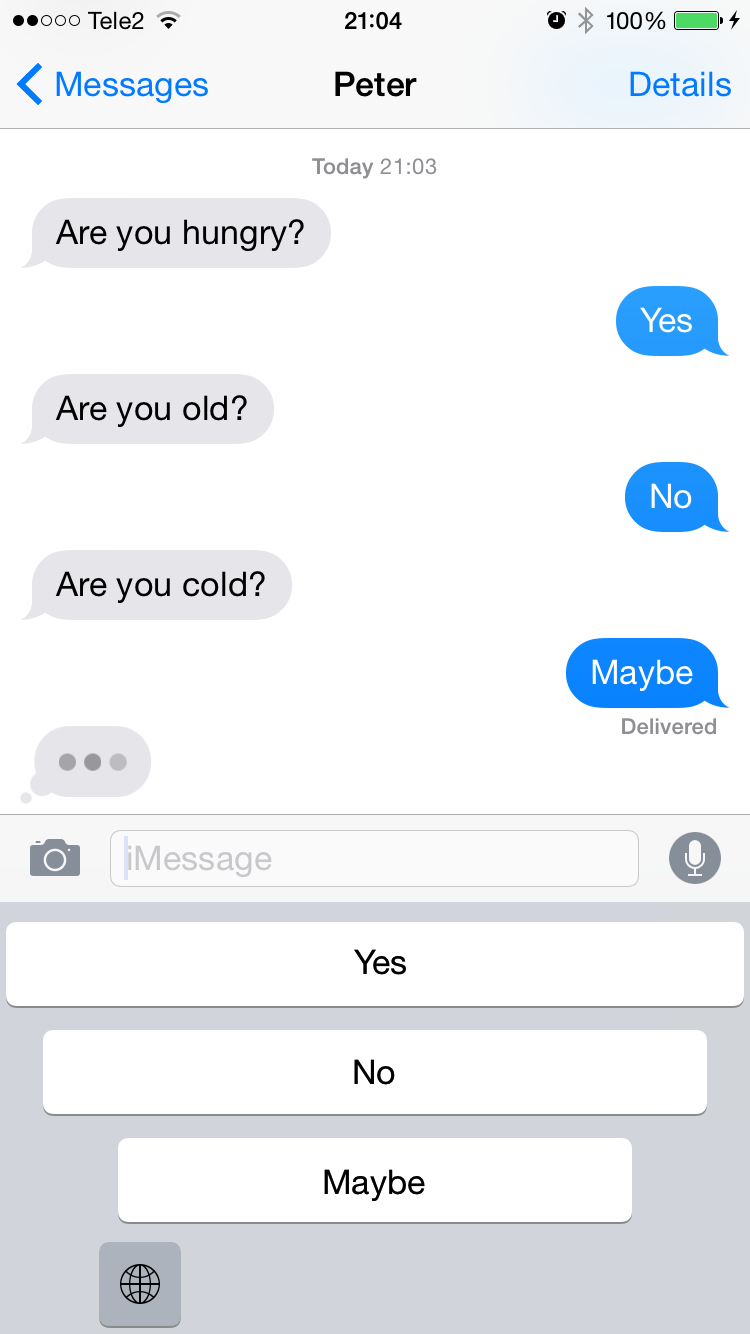
Peter & I made a productivity boosting keyboard for our iPhones
One (Two, Three, Four) — Unintentional Metallica cover band
The Unintentional Metallica cover band (by Konst & Teknik & Martin 2009/2013)
Make the best selfies ever with Loopcam 3
Make the best selfies ever with Loopcam 3 Comes with full video and outstanding filters and stickers. And Instagram sharing! Get it for free today! This is the greatest update we’ve ever done. We’re stunned to be able to ship Loopcam 3 after months of intense development. Enjoy! 1. COMES WITH VIDEO
– Unlimited amount of clips
– Up to 9 seconds
– Super crisp sound
2. INSTANT FILTERS
– No need to wait or render, everything is instantly applied
– 16 great real time filters
– Includes Photo Booth mirror and kaleidoscope effects
– Cinema quality grading filters
3. INSTANT STICKERS
– Lots of hilarious hats, including the Pope hat
– Try 12 glasses, including Google Glass
– All you need to do is to point the camera to a face. The stickers are automatically there.
4. INSTAGRAM SHARING
– Share your loops to Instagram too. Unique integration!
– Also works for WhatsApp, Snapchat and Line
Photoboth
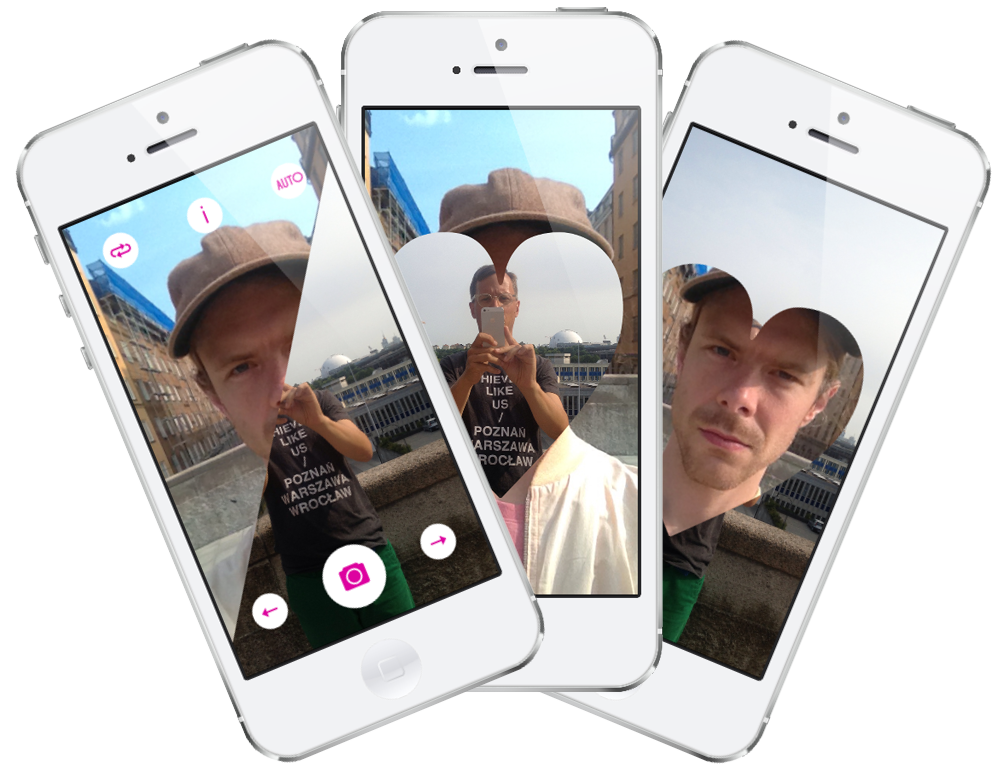
Photoboth is a new iPhone app that lets the user take a photo with both cameras in just one tap and therefore including the photographer in the photo too. The back and front photos can then be arranged and combined in many different (and fun!) combinations.
The app includes super simple sharing to Instagram, Twitter and Facebook.
Get the app here for a special introduction price right now, find more info here and follow Photoboth on Twitter here!
Enjoy!